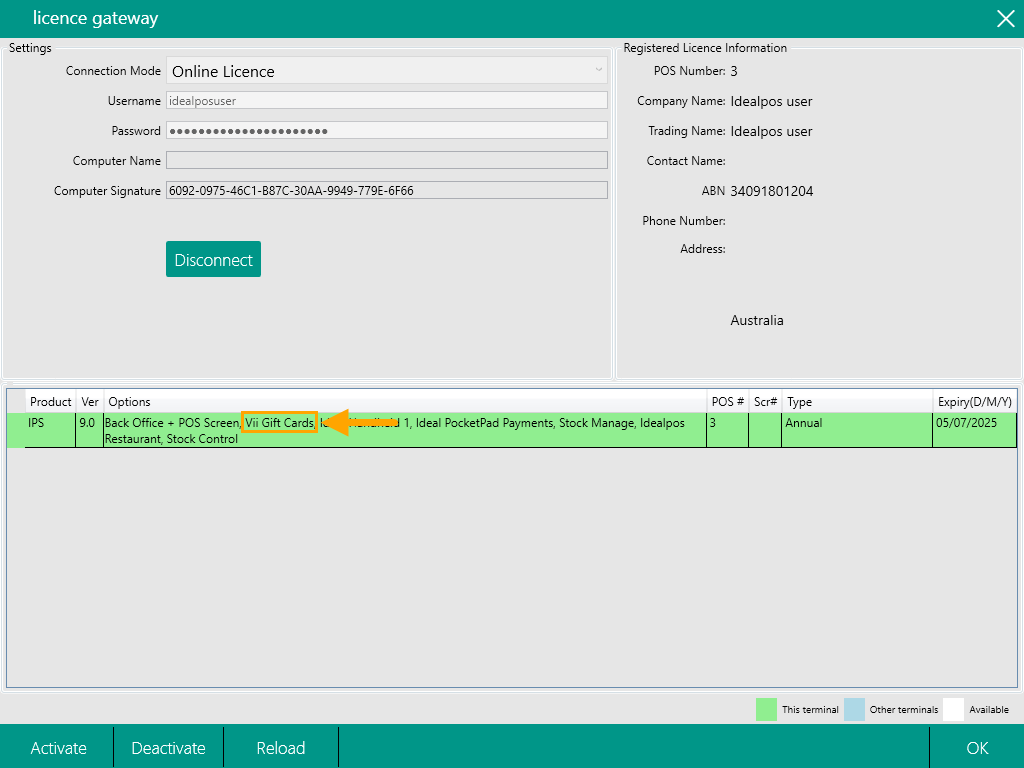
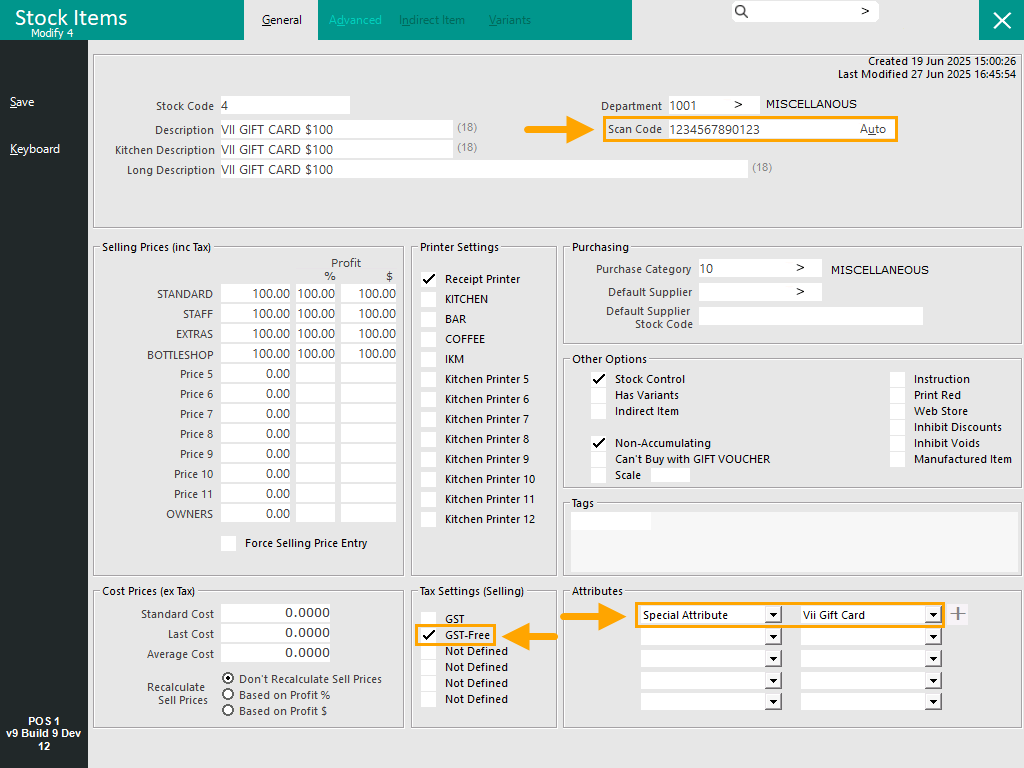
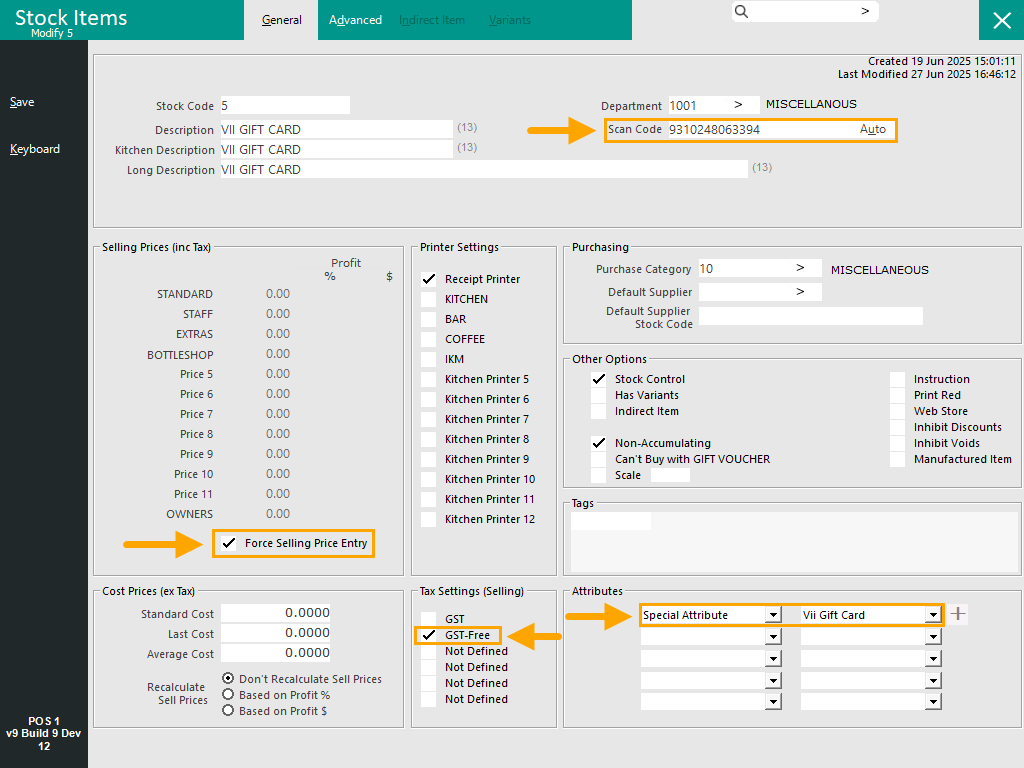
Vii Gift Card functionality includes the sale of Vii Gift Cards as well as the redemption of Vii Gift Cards.
To enable this functionality, Idealpos requires the following to be configured:
- Function Descriptor for the redemption of Vii Gift Cards
- Received Account for the sale of Vii Gift Cards
Go to: Back Office > Setup > Function Descriptors.
Configure Function Descriptor
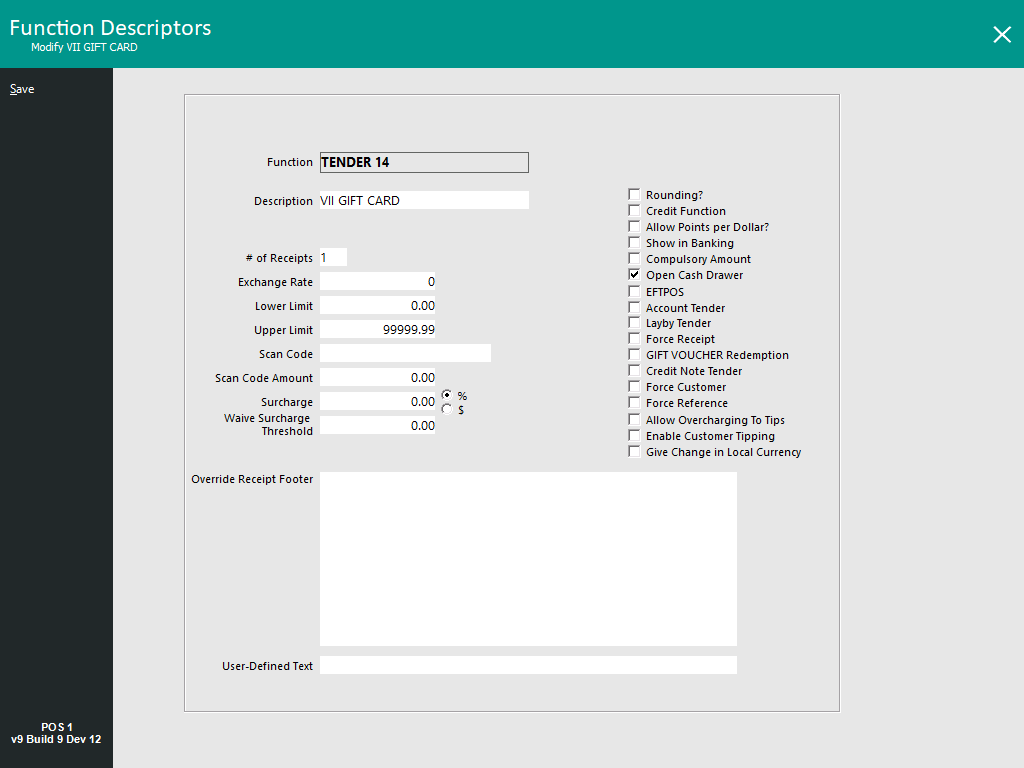
Locate an unused Function Descriptor for the redemption of Vii Gift Cards > Select the Tender > Press the "Modify" button on the top-left corner.
Unused Function Descriptors typically show a Description of "TENDER #", where # is the number of the Tender.
- Description - VII GIFT CARD (or enter the name of the Gift Card brand that has been designed for the venue - the Description allows a maximum length of 16 characters).
Any other options can be enabled as required (e.g. Open Cash Drawer, Show in Banking, etc.).
Press "Save" to save the Function Descriptor.
Configure Received Account
Within the Function Descriptors window, a Received Account function will need to be assigned for the purchase of Vii Gift Cards.
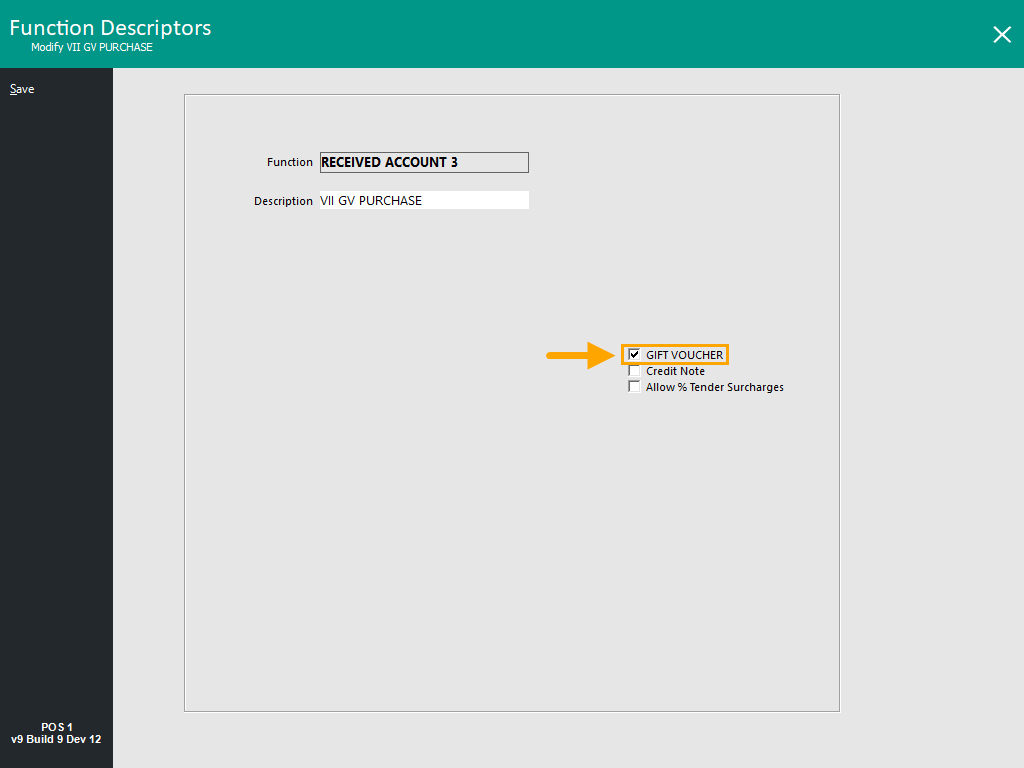
Locate an unused Received Account for the purchase of Vii Gift Cards > Select the Received Account function > Press the "Modify" button on the top-left corner.
Unused Received Account functions typically show a Description of "RA #", where # is the number of the Received Account.
- Description - VII GV PURCHASE (or enter the name of the Gift Card brand that has been designed for the venue - the Description allows a maximum length of 16 characters).
- Gift Voucher - Enable the GIFT VOUCHER checkbox.
Press "Save" to save the Received Account.
Optional - Set Gift Voucher Function Description
If required, the GIFT VOUCHER Description can be changed.
This will affect areas in Idealpos that refer to Gift Voucher sales, Reports, and other areas in the User Interface relating to Gift Vouchers.
Note!
This Description will be used for all GIFT VOUCHER related functions, so if multiple types of Gift Vouchers will be utilised, choose a generic name that covers all Gift Vouchers.
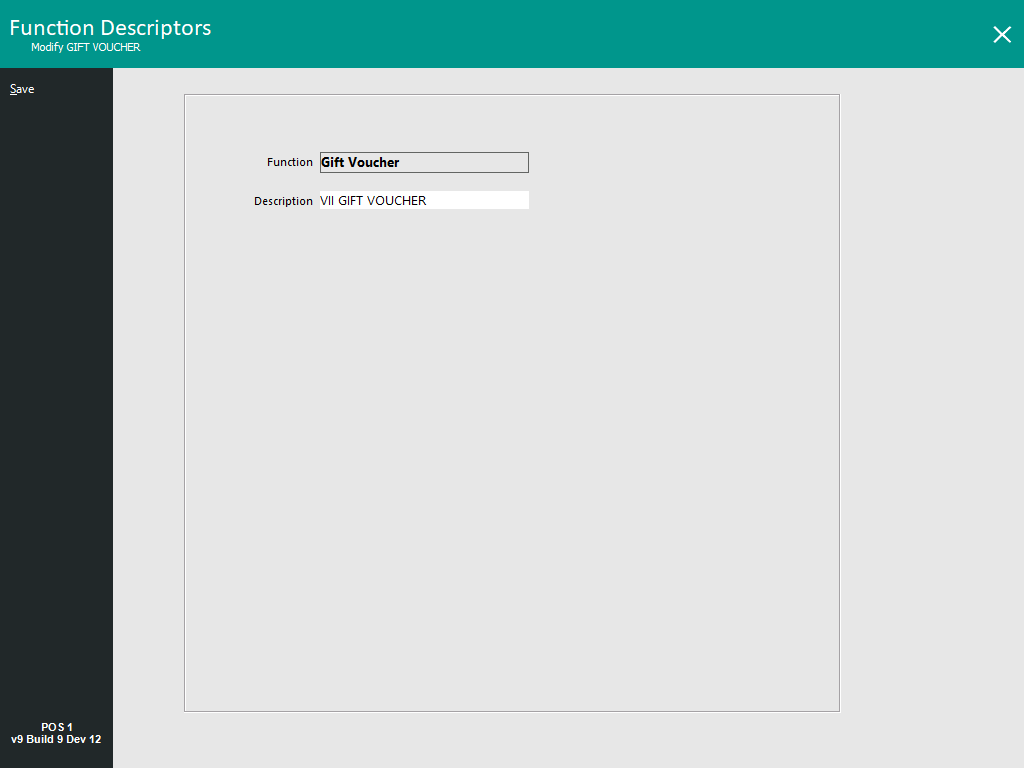
Select the Gift Voucher function and Modify.
- Description: VII GIFT VOUCHER (or enter the name of the Gift Card brand that has been designed for the venue - the Description allows a maximum length of 16 characters).
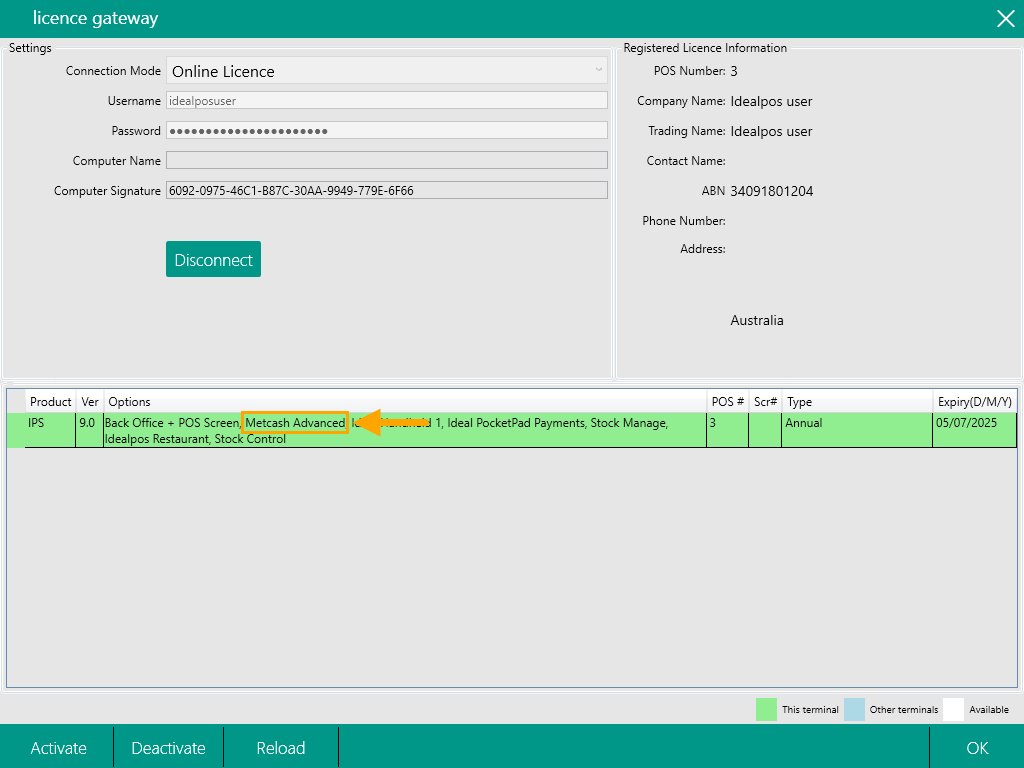
 Enable Vii Gift Cards in the Licence Gateway